Changing and Resetting Password
Changing Password
The user can change their password in the My Account section using the Change Password form.
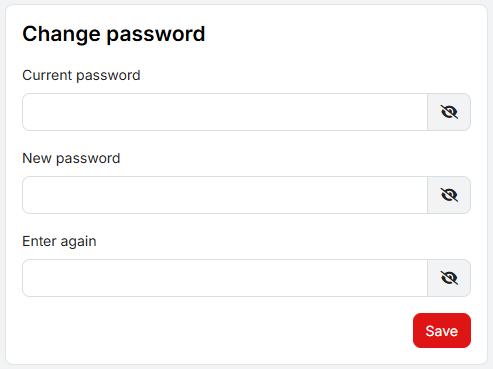
The current password must be entered first, followed by the new password twice. To view the entered password, the user can click the eye icon at the end of the line. After saving the changes, the user will receive a confirmation email.
The password must be at least 8 characters long, must contain at least 5 alphanumeric characters, one uppercase letter, one lowercase letter, one number and one special character. It must not contain common dictionary words and must not be the same as the user’s previously used passwords.
Forgotten Password
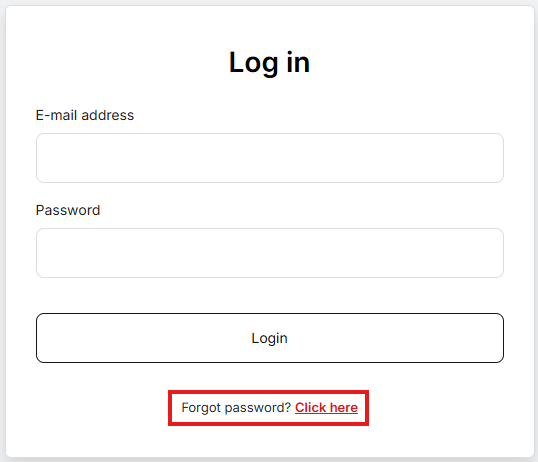
If the user forgets the password, they can reset it by clicking the Click here link under the login form. They must then enter their email address, to which a password reset link will be sent. In this case, OTP must also be reset. After setting a new password, a confirmation email will be sent.
Note: If you experience an issue displaying the QR code or if the password setup link is invalid, please perform the password reset again and repeat the entire password and OTP setup process.